Running an event, from sign-in to close
This guide follows one Tuesday from the first sign-up to the last payout, on the screens as they read. The example: it is 5:40 pm, the entry is $20, Sam Keller has $5 of balance credit left from a rained-out week, and Dee Marsh forgot her wallet.
The guide describes an ordinary event that keeps the books. Skins events and events with money turned off have their own Payouts screens, and some controls named here are missing or read differently on them.
The five phases and the rail
Under the event's title a strip shows where the event is: Sign-ups · Playing · Scoring · Payouts · Done. Each phase has one job.
- Sign-ups — players sign in and pay their buy-in on the sheet.
- Playing — the round is underway; scores come in from UDisc or by hand.
- Scoring — review and correct scores, and link any unmatched players.
- Payouts — pay out winnings, ace pots and side games.
- Done — the event is finished and its money is committed to the books.
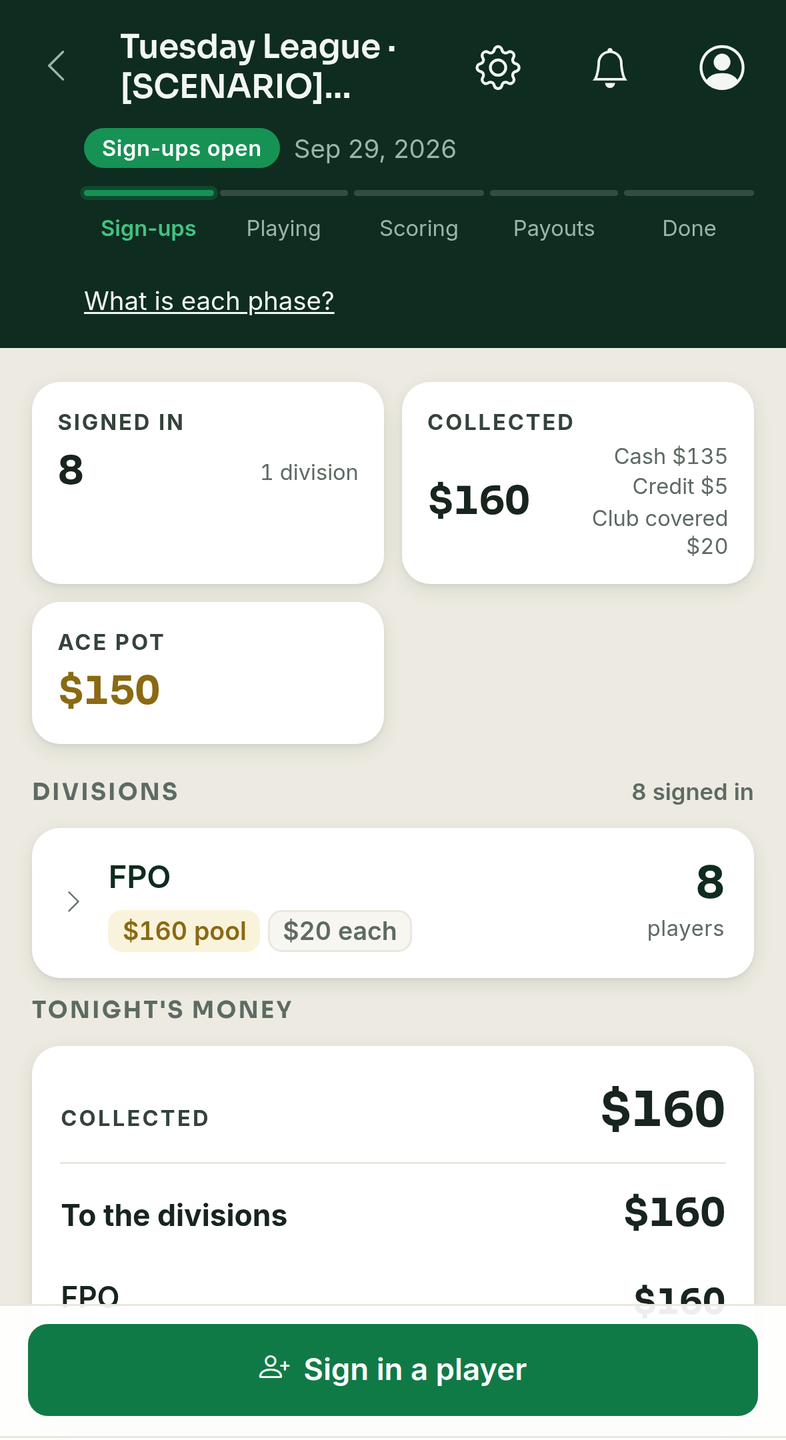
The strip only steps back. The phase just behind the current one is a tap that moves the event back one step (more on that under Backing up a step). Moving forward is never on the strip; each screen has its own button for it, named below.
Begin sign-ups
A scheduled event opens on a screen that says Not started yet, with one green button: Begin sign-ups. Tap it when players start arriving. The event moves to Sign-ups and the sign-in sheet takes over.
Taking pay-ins: cash, balance credit, club front
Tap Sign in a player. Under Who's paying? type a name and pick the player, then pick their division. The sheet shows the Entry price and, at the bottom, Due now.
Balance credit. Balance credit is money the club holds for a player: a refund put on their balance, a rained-out week. On an ordinary event, when a player has some, the sheet adds Their balance with Use their $5 credit ticked. Credit can cover part of a charge and it works on any charge — the buy-in, the ace pot, a contest. For Sam, $5 of credit takes the $20 entry down to Due now $15, and the sheet says "Their $5 credit covers part of it." How much of it lets you use less. Untick the box to take the whole amount another way.
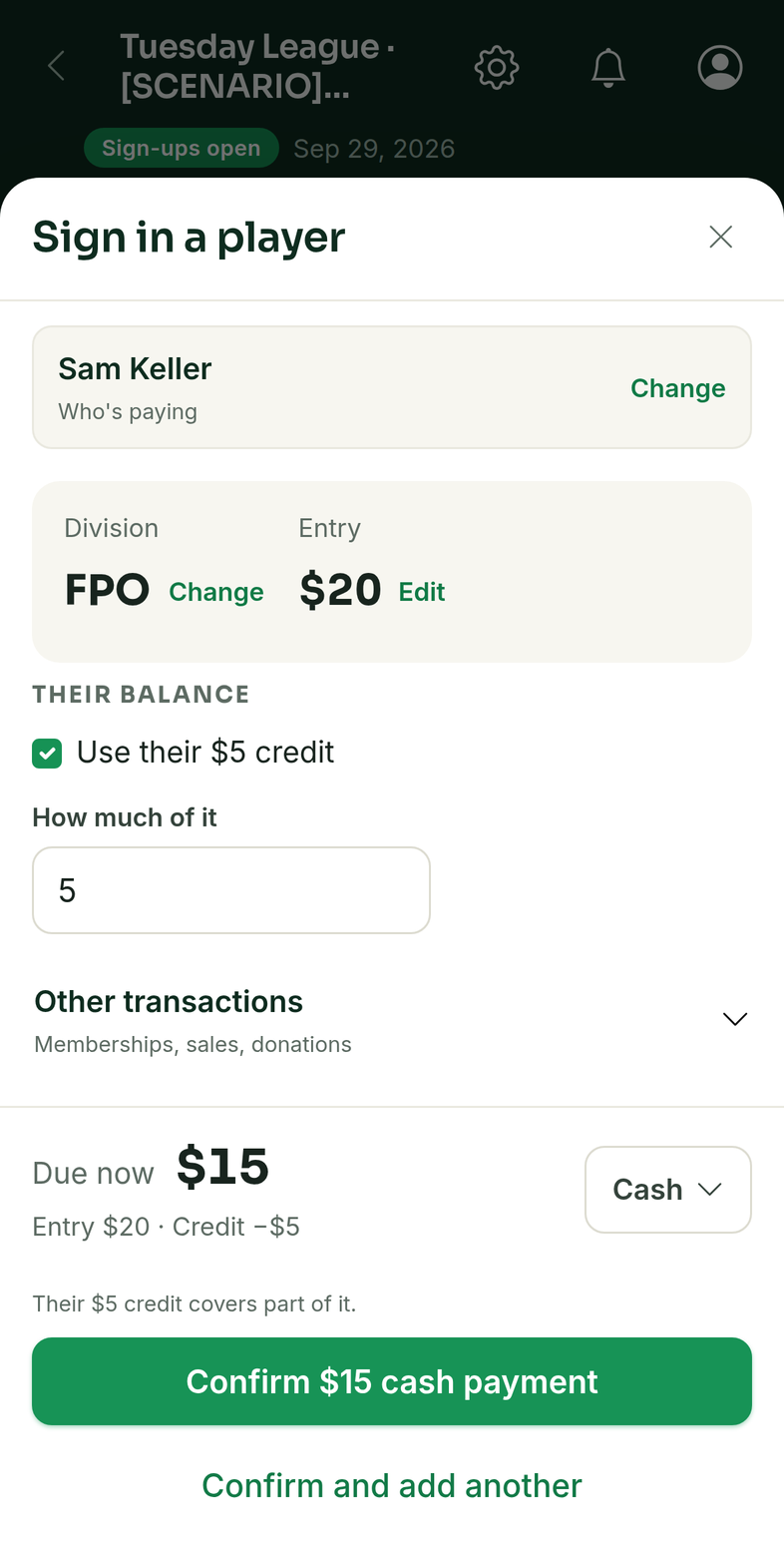
Cash and the rest. What is left to collect goes by the method chip, Cash unless you change it. Open it for Venmo, Zelle, Cash App, PayPal or Club covers it. The confirm button repeats the amount and method: Confirm $15 cash payment. Confirm and add another books the payment and opens the next player.
Club front. Choose Club covers it for a player who cannot pay at this event. The sheet reads Club Funds covers $20 and the button becomes Sign in — club covers it. The club fronts Dee's $20 and it sits on her tab: she shows under Player tabs as owing the league, and the next time she signs in the sheet says "They owe the league $20 from before this event." If fronting would take Club Funds below zero, the app asks first; Cover it anyway goes ahead.
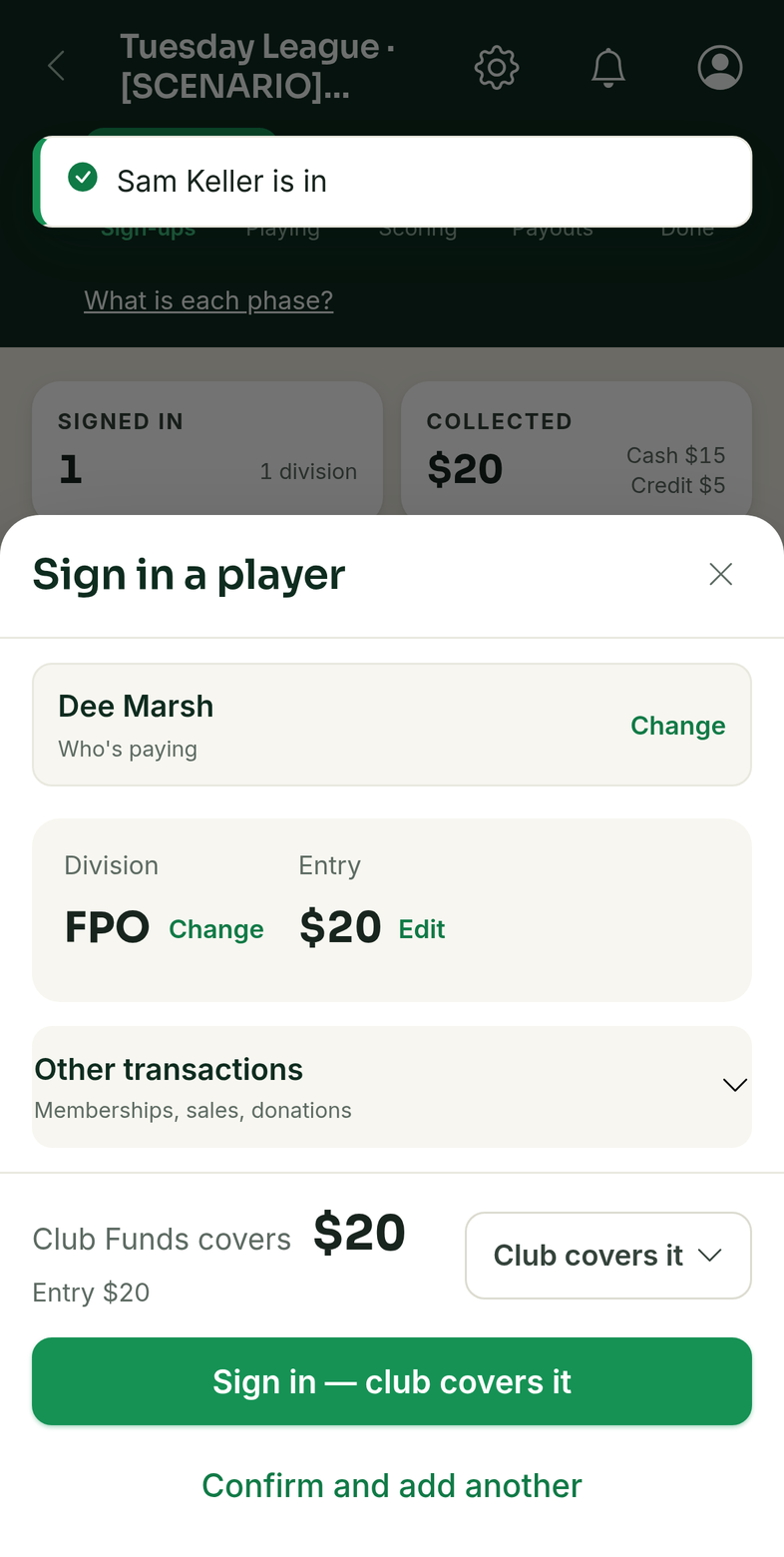
Where the event tracks money, the tiles at the top of Sign-ups keep count: Signed in, and Collected with one line for each way it came in (Cash, Venmo, Zelle, Cash App, PayPal, Credit, Club covered).
Start the round
At the bottom of the Sign-ups screen, Start the round moves the event to Playing. If nobody is signed in, the app asks "No players are signed in — continue anyway?" first.
Sign-ins do not stop when the round starts. On an ordinary event's Playing screen, Sign in a late arrival opens the same sign-in sheet, so Kim Ortiz, who turns up at 6:20, is signed in and pays exactly as anyone else did. View sign-in sheet shows the full sheet.
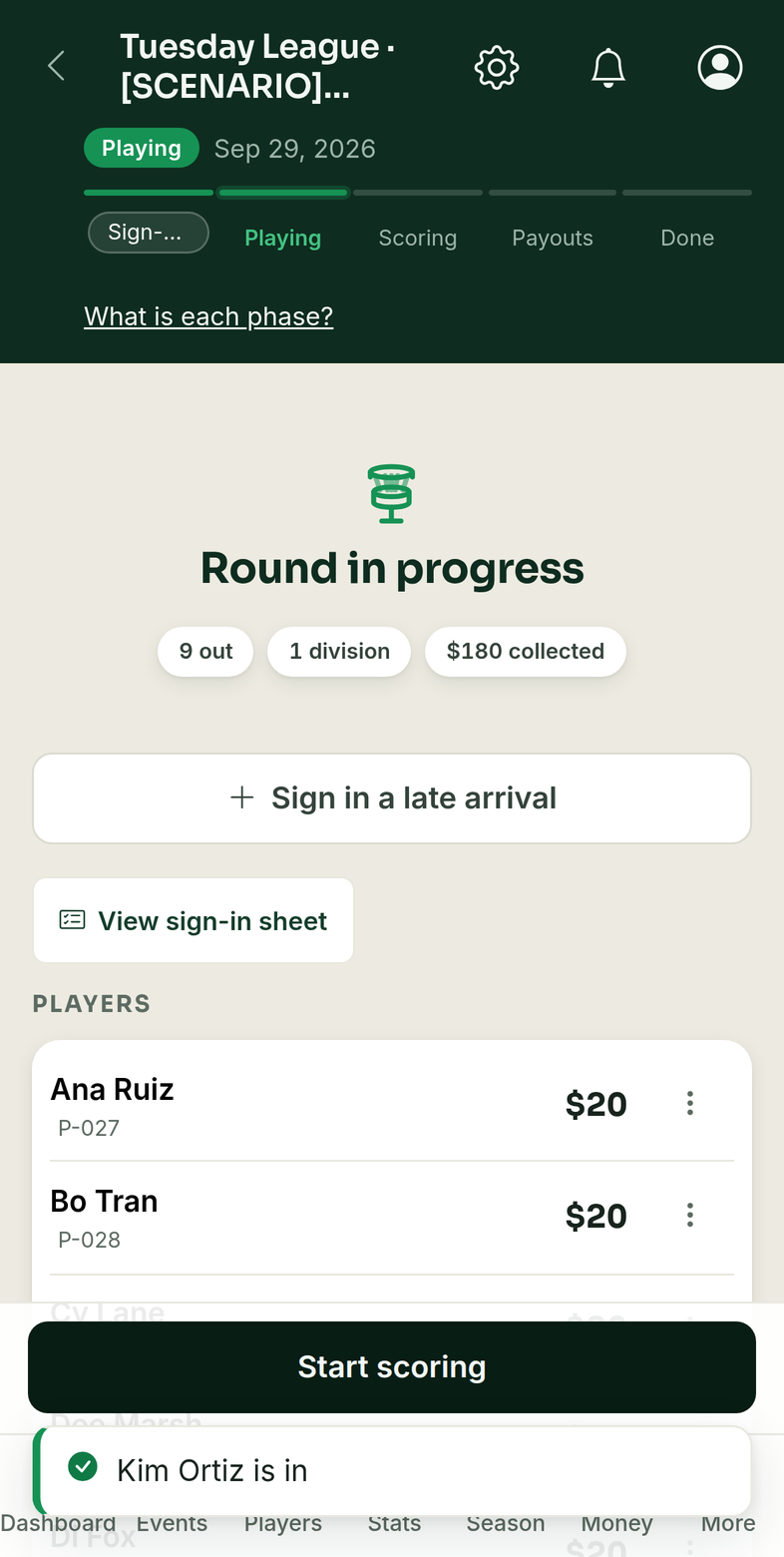
When cards start coming in, Start scoring moves the event to Scoring.
Getting scores in
On Scoring, if the event has a UDisc link, Sync from UDisc pulls the scores in. It is optional: you can type each player's total, or open a division to key scores in hole by hole. A player whose card is complete has a total that comes from the card ("Comes from the card — change a hole to change this").
Flags on Scoring
Scoring points out what needs a look. Three things can show up, and none of them stops you.
- "{name} has no score" (With several unscored players one flag reads "N players have no score".) Fix puts the cursor in their total (or, when UDisc scores are still waiting to be placed, opens the sheet to place them first). For a single player the ⋮ beside it also offers Mark DNF (with money in, the label adds "— the money stays in the pot") and, when they have paid, Refund and remove. It is a flag, not a stop: Work out payouts shows, for one player, "1 player still has no score. Move to payouts anyway? You can come back to Scoring anytime." and Move to payouts goes on.
- "{name} played {division}." The line beneath says which division they signed in as. Resolve opens the fix.
- A UDisc name nobody signed in. UDisc scored a name that is not on your sign-in sheet. Once every signed-in player has a score or a DNF and no "played {division}" flag is open, it waits under Remaining UDisc scores with the division and score (until then a note says how many unused UDisc scores are waiting), and Review opens it: Sign in as a late arrival runs the sign-in cashier, takes their buy-in (on an event that tracks money), and the score stays; Ignore this round leaves the round out of stats and payouts; Decide later closes the sheet. Leaving it does not stop Work out payouts, but it is a round with no sign-in behind it, so answer it before you pay anyone.
One case does stop you: a score already matched to a player who never signed in, on an event that tracks money. At 8:30 that is Big Mike, whose UDisc name matched a name on your roster. Work out payouts opens the Scores with no sign-in sheet instead of moving on:
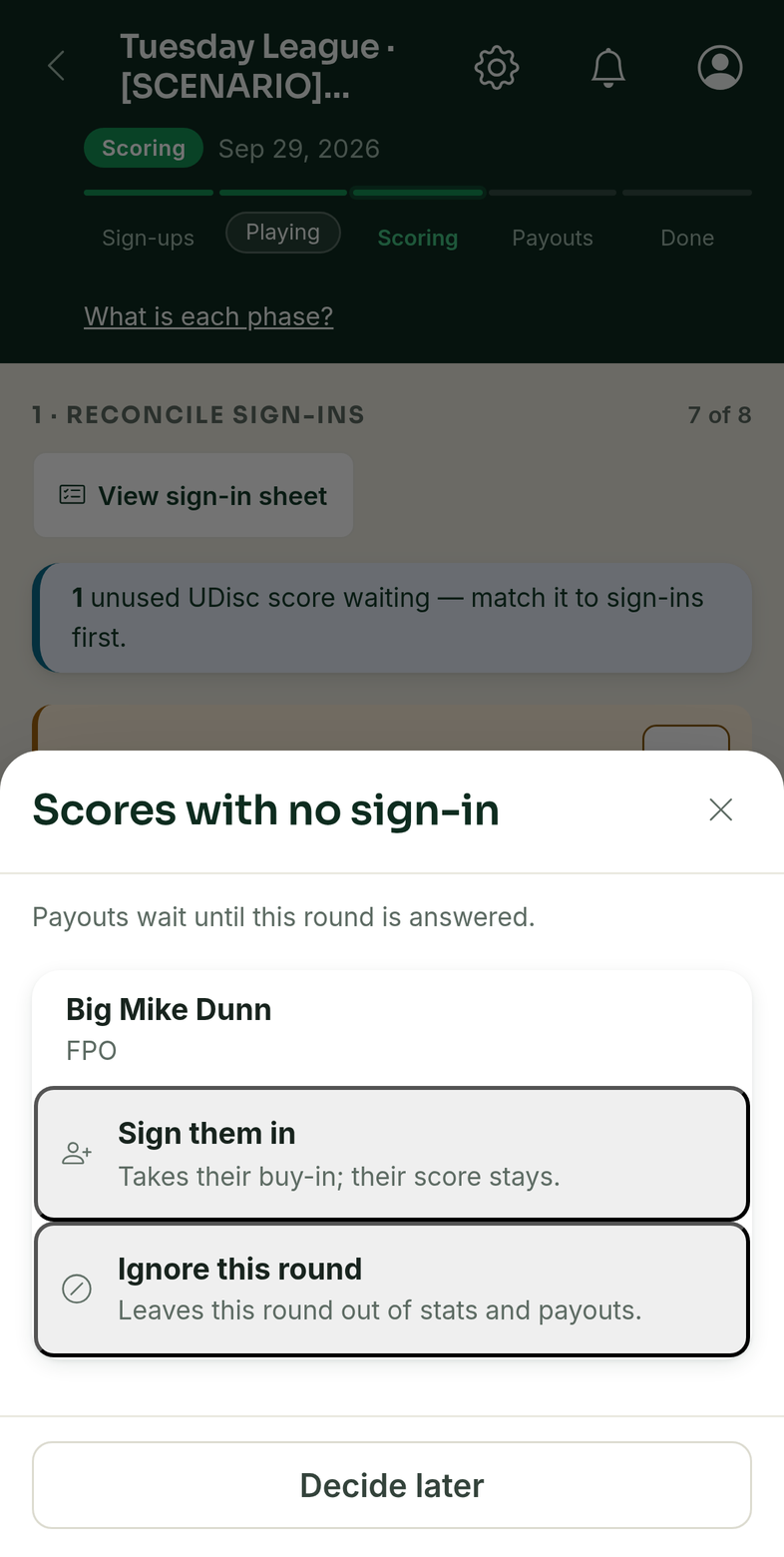
The sheet says payouts wait until the round is answered (with several, "N rounds have no sign-in. Payouts wait until each is answered."). Each person has two doors (if a round cannot be ignored from the sheet, it says so and offers only sign-in). Sign them in takes their buy-in at the sign-in cashier and their score stays. Ignore this round leaves the round out of stats and payouts. Decide later closes the sheet and leaves things as they are. When the last one is answered, the app carries on to Payouts by itself.
Work out payouts, pay, close
Work out payouts moves the event to Payouts. The amounts are already worked out when the screen opens.
Two views sit at the top. Check the money shows each division's pool, tie decisions and ace pots. Hand it out lists the places in order, each with a name, an amount and a Pay button, and a running "to go" count.
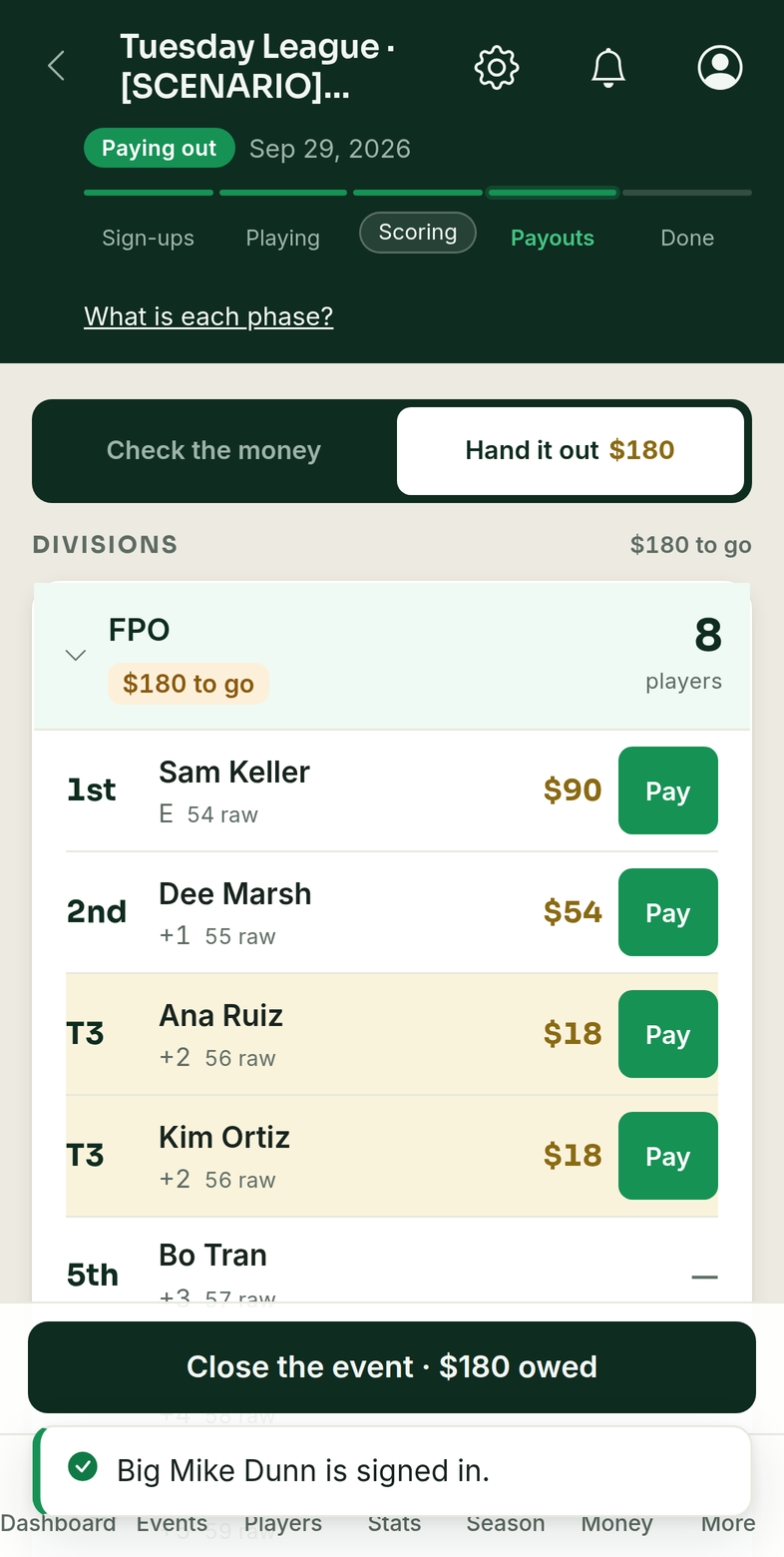
Tap Pay beside a winner. A sheet named for the winner asks how to pay them, with Cash, Venmo, Zelle, Cash App, PayPal or Onto their balance (they keep the money with the league and collect it at another event). Picking one records the payment. A paid row shows a tick with correct and undo beside it, so a payment recorded by mistake can be undone.
When the money is handed out, the bottom button reads Close the event, with what is still owed beside it if anything is. Tap it. When closing moves money between the division pools and club funds, the app shows what moves and asks "Close the event?"
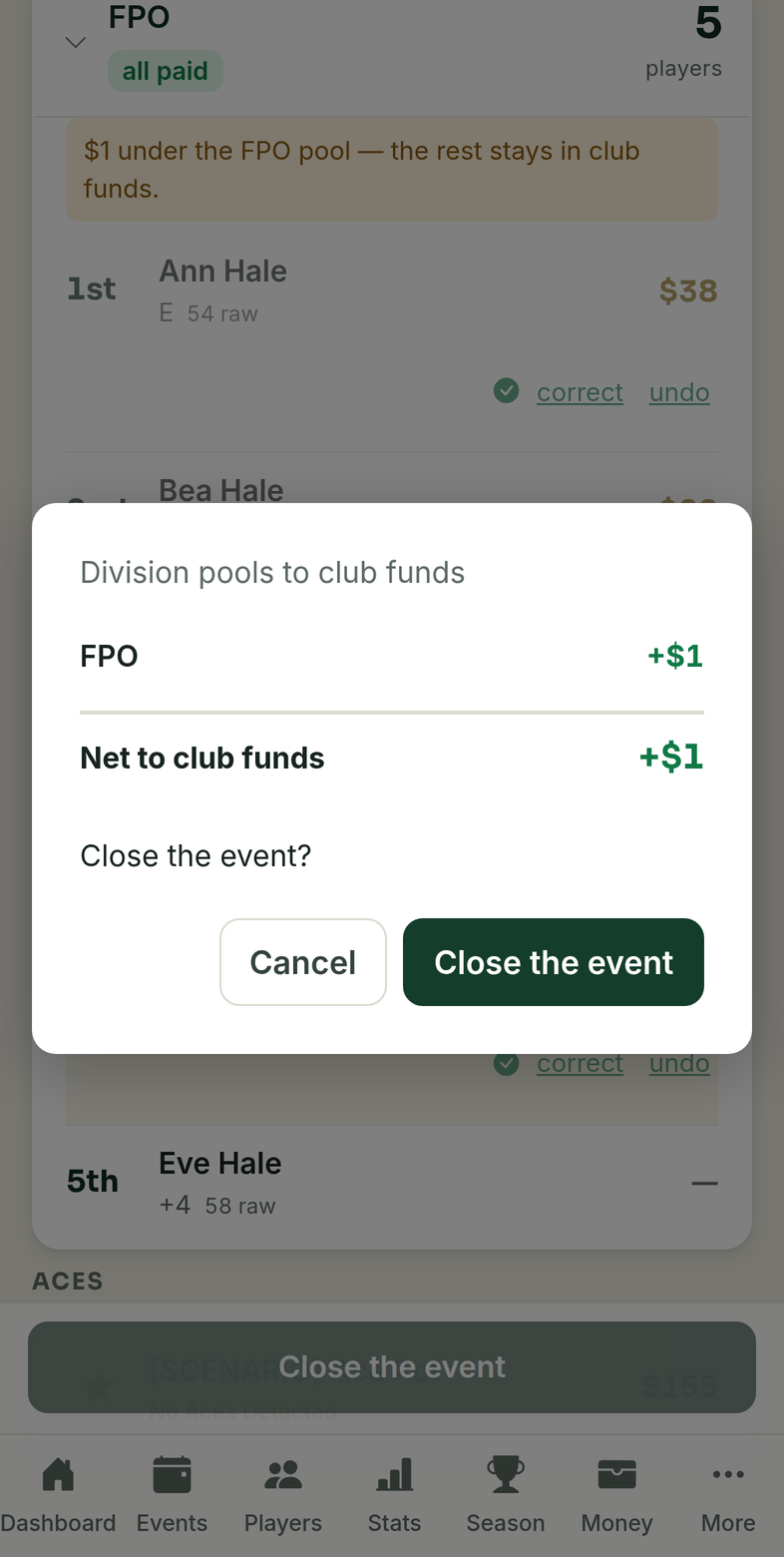
A few things make it ask a second question before it will close. Winnings nobody has been paid yet: "$90.00 will be held in cash (added to their account balance) for 1 player(s) when you finish", with each name and amount, then Cancel or OK. That money stays with the club as balance credit for them; it is not paid out of your cash box at this event. A contest with money collected and no winner. A payout that would take Club Funds below what the club holds. Closing commits the event's money to the books, and the strip moves to Done.
Backing up a step
The phase behind the current one is a button in the strip. One tap steps the event back one phase, and each step tells you what it does:
- Playing to Sign-ups: "Return to sign-ups? Players on the field will remain signed in."
- Scoring to Playing: "Return to field? Scores/results stay saved, but scoring tasks will be hidden until you begin scoring again."
- Payouts to Scoring: "Return to Scoring? Payments stay recorded; you’ll review any differences before closing again."
- Done to Payouts (not offered on an event closed into an accounting period): "Reopen this finished event to make corrections? It moves back to Payouts — nothing is un-booked until you re-close it."
Stepping back never takes a payment back on its own. Payments already recorded stay recorded until you undo them, and if the amounts change you review the differences when you close again. There is nothing behind Sign-ups on the strip: once money has been collected, the way to take it back is a refund from the player's row.
When it goes sideways
A late arrival who never paid. They play, they get a score, and nobody signed them in. If UDisc matched the score to a player on your roster and the event keeps the books, Work out payouts stops at Scores with no sign-in; if it matched no one, the round waits under Remaining UDisc scores (see Flags on Scoring). Either way, sign them in and collect their entry like anyone else's; the payout then counts them in.
A player pulls out. On Sign-ups or Playing of an ordinary event, open the actions menu (⋮) on their paid row and choose Refund. The sheet asks for the Amount, which starts at the whole amount collected, and Where does it go? — Cash, Venmo, Zelle, CashApp, PayPal or Add to balance. The whole amount goes to the one place you choose (for a player the club fronted, only what they paid is handed over; the fronted part goes back to Club Funds and clears their tab). The button spells it out: Refund $20 → Cash. The player comes off the event with the refund, and their score, if they had one, goes with them.
For a partial refund, type a smaller amount in Amount. What you do not hand back stays collected.
If the player paid part of the entry with balance credit, that credit is not put back on their balance as credit. Sam paid $15 cash and $5 credit for a $20 entry: the refund is for the whole $20, and you choose where all of it goes — hand him $20, or choose Add to balance to put $20 on his balance.
A wrong score. Before you have moved to Payouts, fix it on Scoring: type the new total, or change a hole if the player has a card. After Payouts has opened, tap Scoring on the strip, correct the score, and work out payouts again. Payments already recorded stay recorded. When you close again and something changed, a review opens first, showing what finishing will do. Payments vs. owed lists each player with what was paid and what is now owed, and Overrides kept lists amounts that were paid or set by hand: a paid one has Undo payment, an unpaid one Reset to calculated. Each section appears only when it has something in it. Not yet goes back; Close the event closes. After the event is Done, open the gear at the top of the event, which opens Event options, and choose Correct this event…. It offers Fix scores, matching or sign-ins, which goes back to Scoring, and Fix payout amounts or payments, which goes back to Payouts. An event closed into an accounting period is corrected in place instead: its menu offers Edit scores and Edit winnings & corrections, and the strip has no way back from Done.
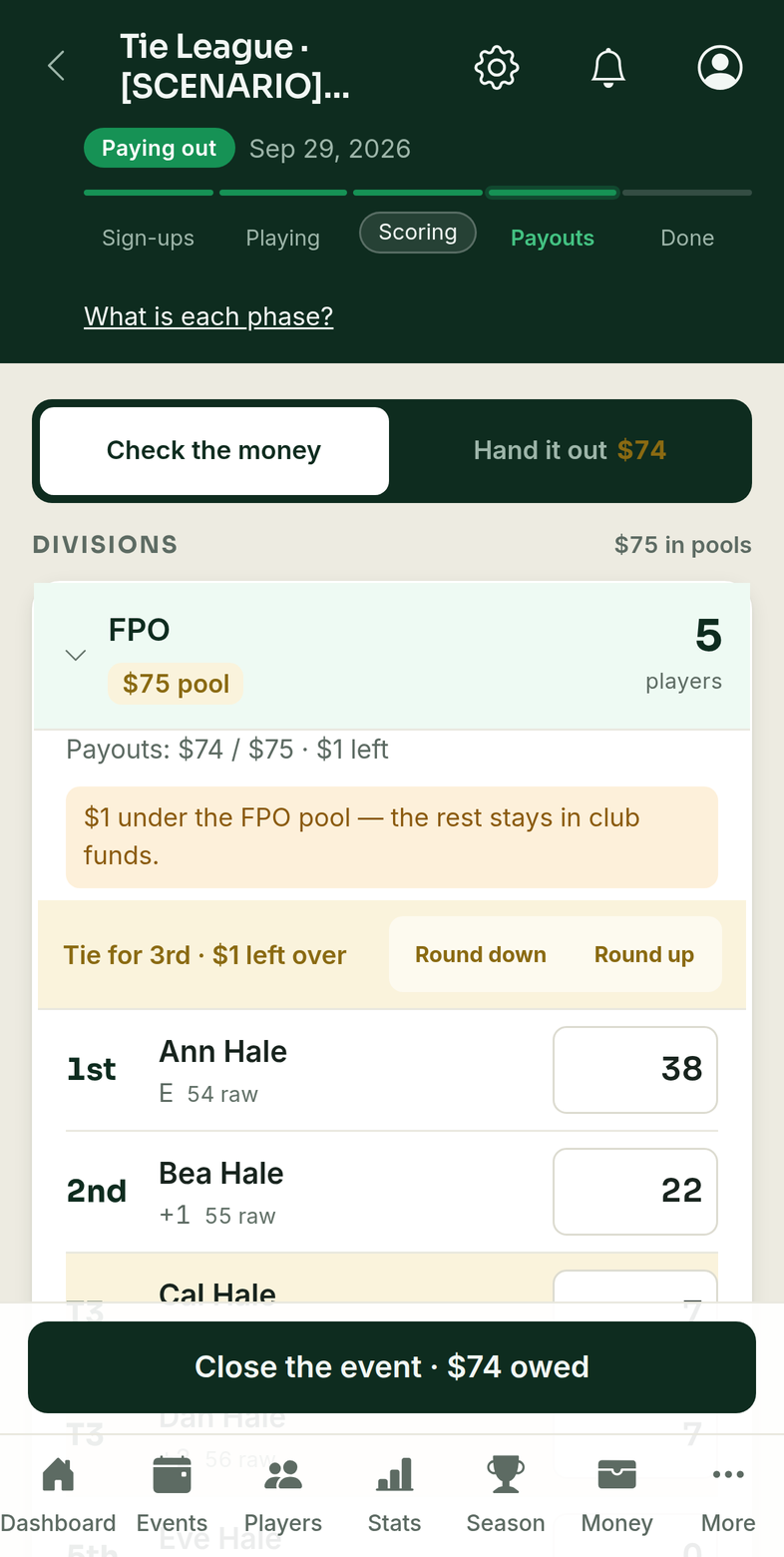
A tie. When the money for tied places does not divide evenly among the tied players in whole dollars, Check the money shows a bar such as Tie for 3rd · $1 left over with Round down and Round up. The tied players share their places' money evenly in whole dollars. Round down pays each one the even share and leaves the leftover in club funds. Round up pays each one a dollar more and takes whatever that adds up to from club funds (three players tied with $1 left over is $2 out of the cash box, not $1).
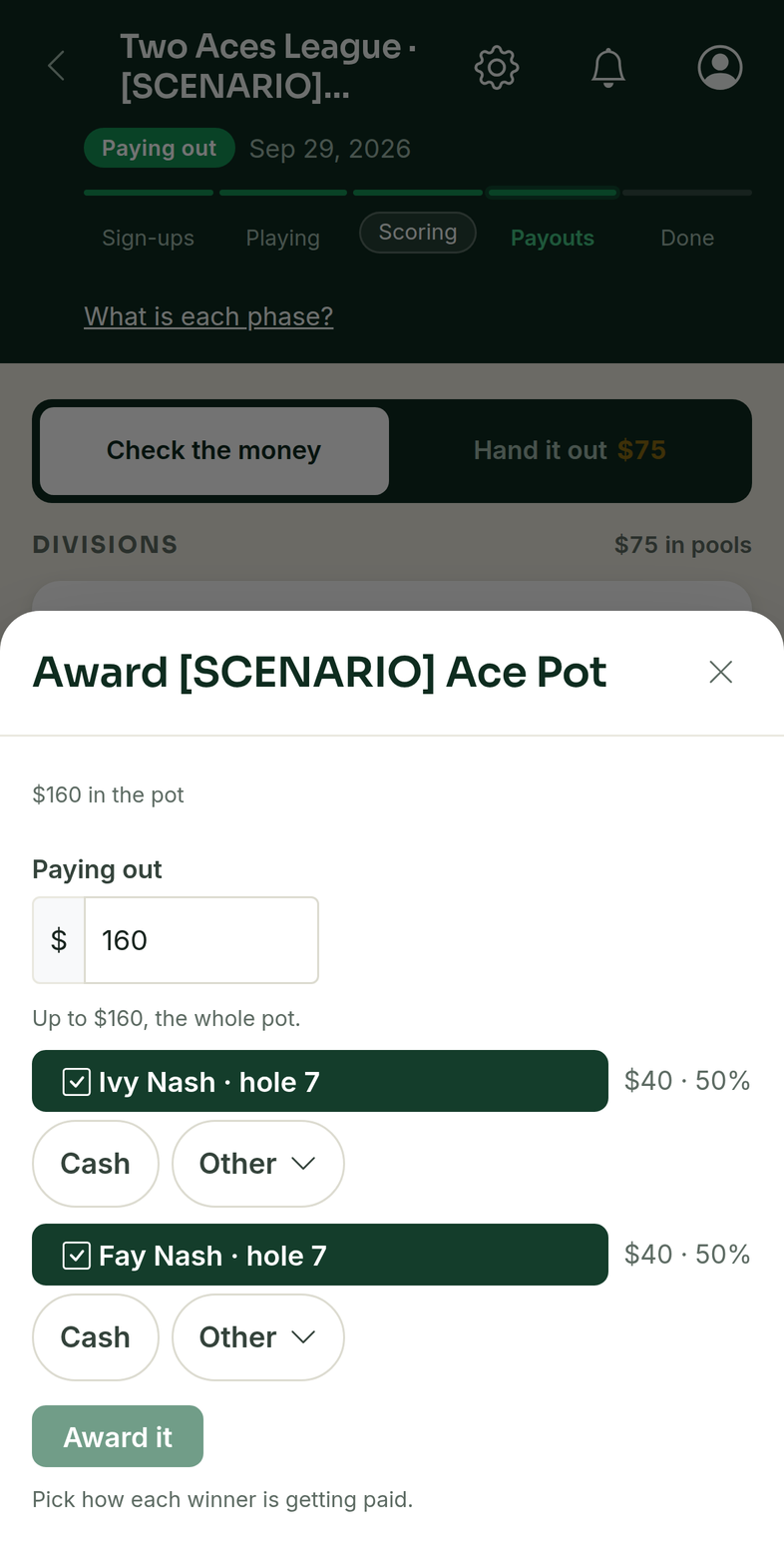
Two aces. Ace pots sit under Aces on Payouts. In Check the money, a pot with a detected ace and no winner yet has an Award button; in Hand it out it shows Pay once awarded. The sheet shows what is in the pot and one Paying out amount for the pot. That amount starts at what the pot holds, or at the pot's per-event cap if that is lower, and you can type any figure up to what the pot holds. Tick who aced. The amount is shared evenly between the ace-hitters, the pot's non-member percentage is applied to anyone who is not a paid member, and the sheet shows each person's figure before you tap Award it; hand over exactly that figure. What a non-member's percentage withholds stays in the pot for the next ace and none of it goes to club funds; a pot can instead be set to share it among the full-share winners, and the sheet's figures already include that. Pick how each winner is getting paid, Cash or Other, then Award it.
Where to go next
How the amounts on Payouts are worked out is in Payout tables.